Moving a large video, project folder, or backup between two computers can be surprisingly annoying. A USB drive works, but you have to keep plugging it in and out. Cloud storage is convenient too, until you have gigabytes of files to upload and download again.
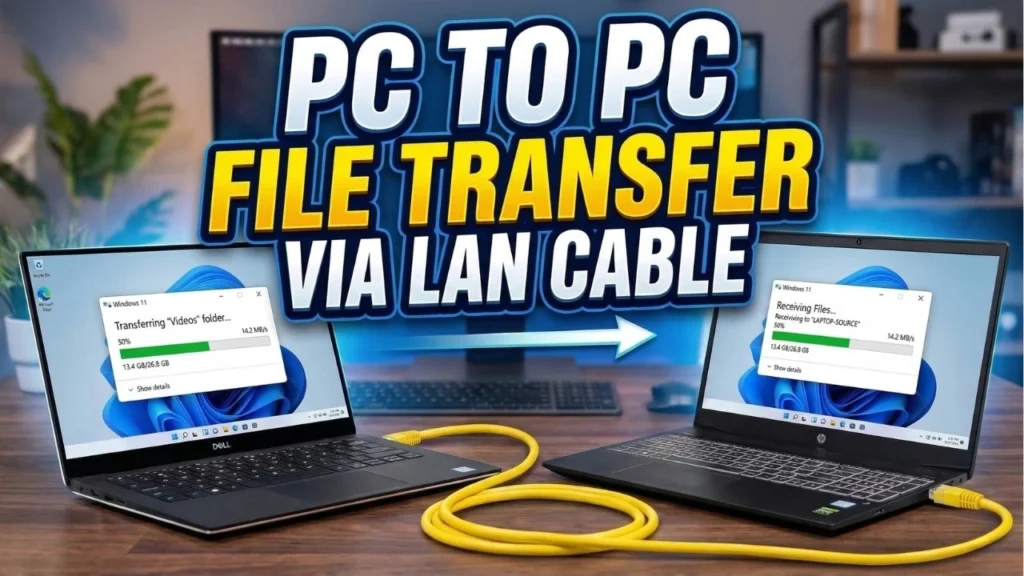
There’s another option if both computers are connected to the same home or office network. With SFTP, you can transfer files between Windows PCs over Wi-Fi or Ethernet. Once the connection is set up, the other computer’s folder can appear in File Explorer like an ordinary drive. You can copy and paste files without moving a USB stick back and forth.
The setup uses Windows’ built-in OpenSSH Server on one computer and RaiDrive on the other. It’s especially useful when you regularly move recordings, documents, or other large files between two PCs.
Get both Windows PCs ready
For this method, one computer stores the files and acts as the SFTP server. The second computer connects to it and displays its folder as a drive. Both should be on the same trusted local network, whether they use Wi-Fi or Ethernet.
You will need access to an administrator account on the first PC to enable OpenSSH Server. The connection itself should use a separate, password-protected Windows account with access only to the folders it needs.
Enable the SFTP server on the first computer
Windows 10 and Windows 11 can use OpenSSH Server to accept SFTP connections. It may not be enabled by default, so start with the PC where your files are stored.
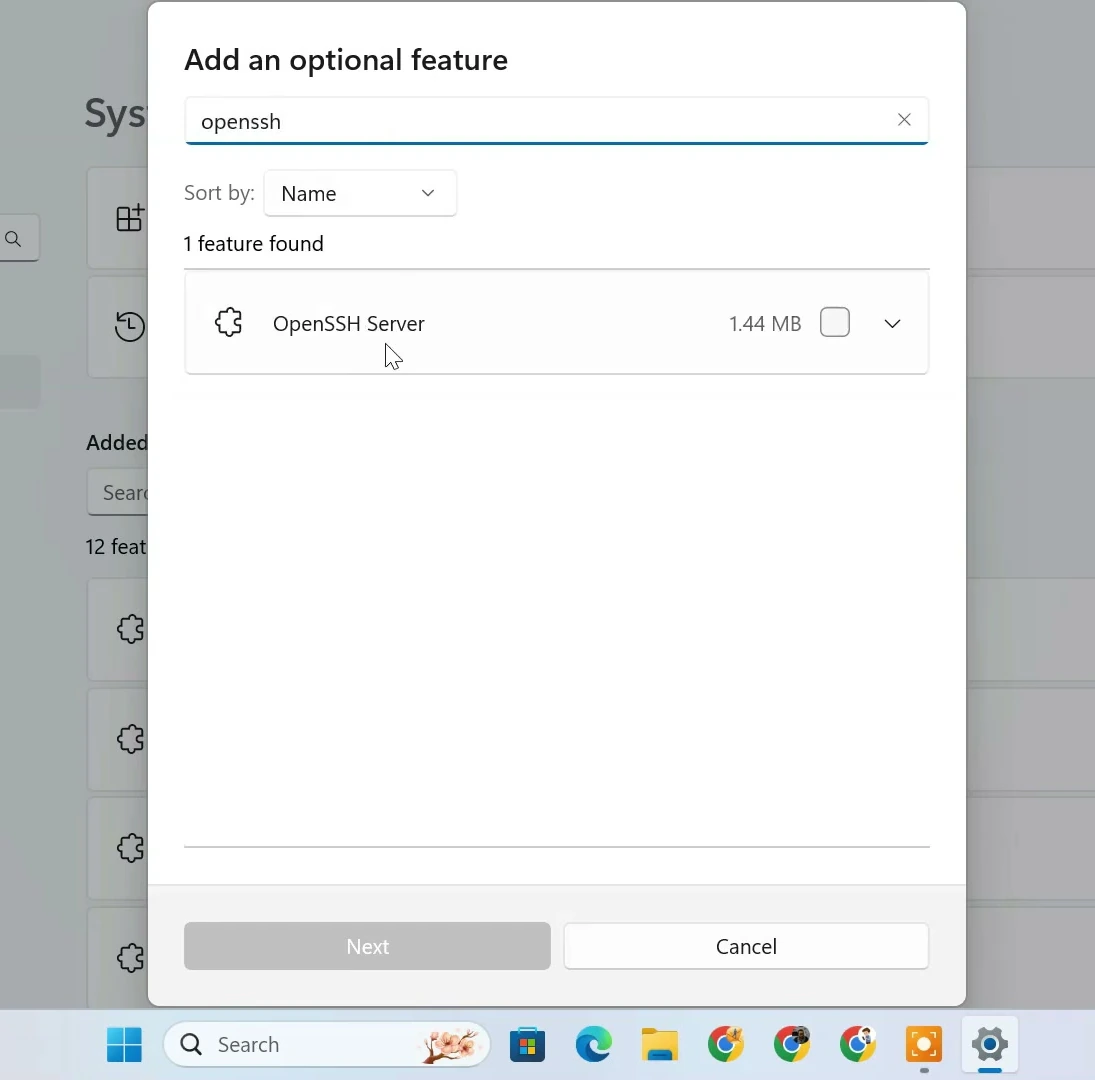
On Windows 11, open Settings, go to System, and select Optional features. Click View features, search for OpenSSH Server, select it, and add it. On Windows 10, you can find the feature under the optional features settings, although the menu layout may look different.
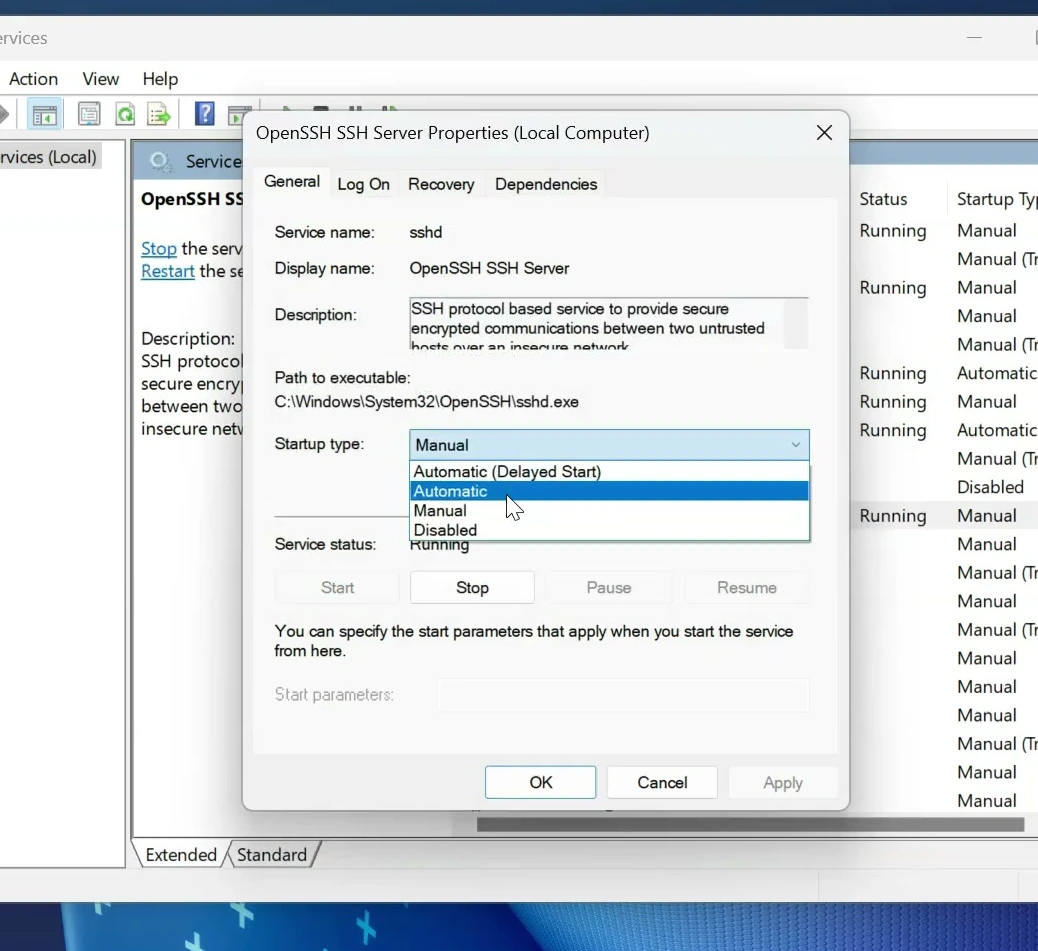
After installation, press Windows + R, enter services.msc, and open the Services window. Find OpenSSH SSH Server and double-click it.
Click Start if the service is stopped. Then set Startup type to Automatic and apply the change. That way, you don’t have to start the server manually every time the PC restarts.
Choose the folder you want to access
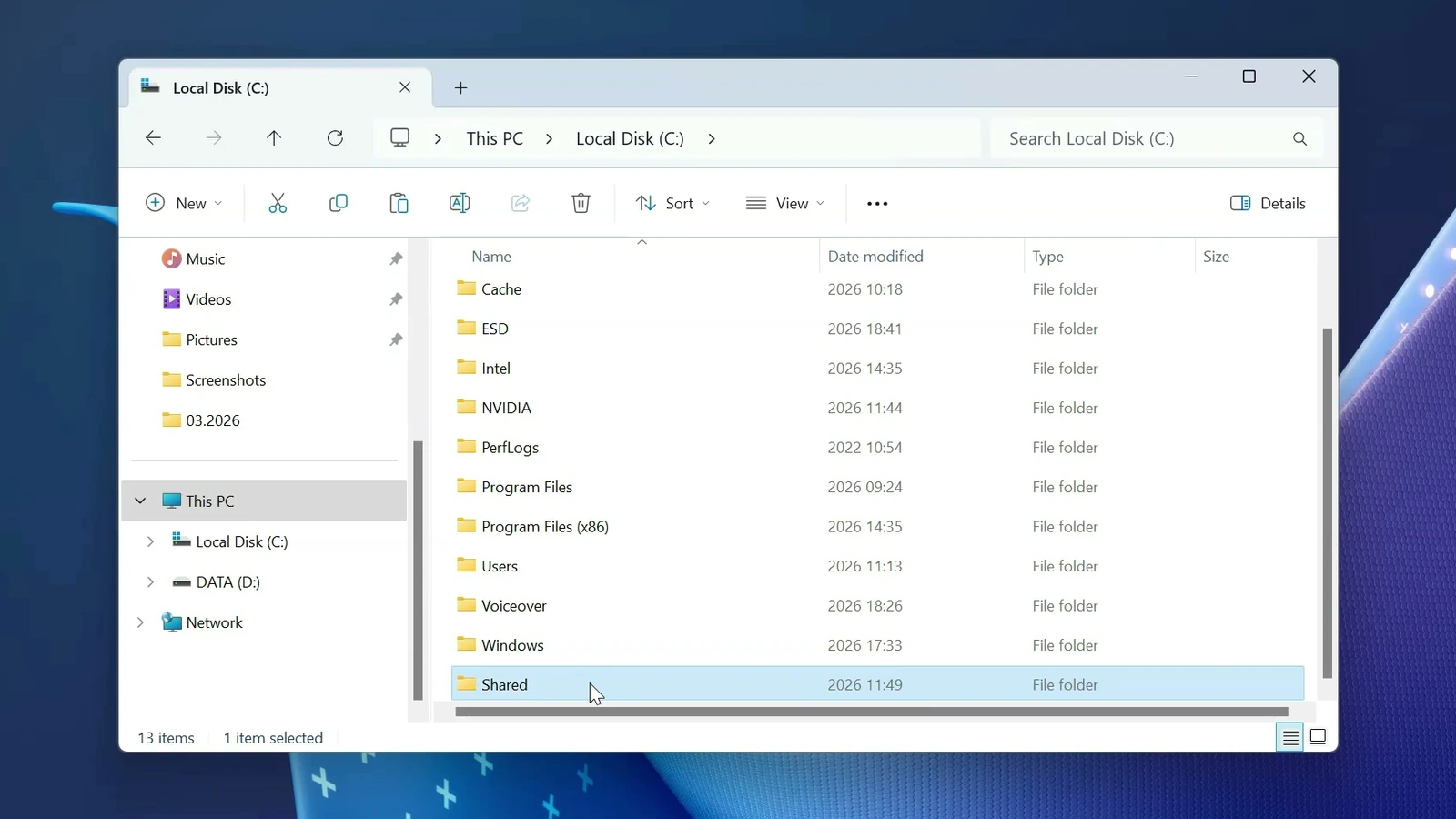
Now decide which files the second computer should see. In File Explorer, open the C: drive and create a folder named Shared. Its path will be C:\Shared.
Copy a few test files into this folder. Using one dedicated folder makes the setup easier to manage, especially when you don’t want to browse through the first computer’s entire drive.
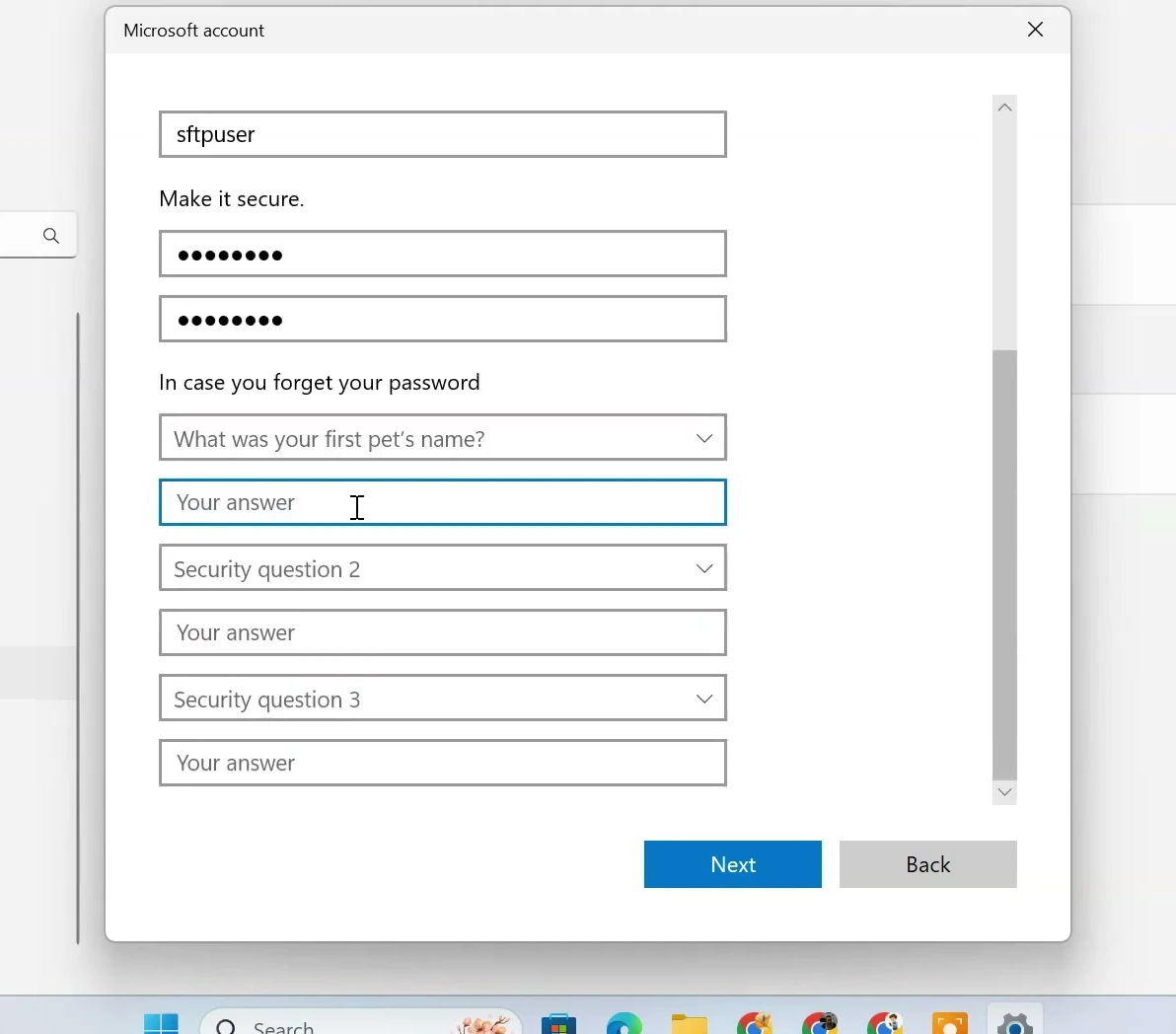
For a predictable connection, create a standard local Windows user with a strong password. Open Settings → Accounts → Other users, select Add account, and follow the options to add a user without a Microsoft account. The example username is sftpuser, but you can choose your own.
Make sure this account has the Windows file permissions it needs for C:\Shared. If you want it to upload, rename, or delete files, it needs suitable write permissions too. The SFTP path you select later is only the folder you start in. It does not override Windows permissions or lock the account inside that folder.
Find the first computer’s IP address
To reach the SFTP server, the second PC needs its local IP address. Open Command Prompt on the first computer and run:
ipconfigFind the IPv4 Address under the network adapter you’re actually using. If the PC is connected by Ethernet, check the Ethernet section. If it’s on Wi-Fi, look under the Wi-Fi adapter.
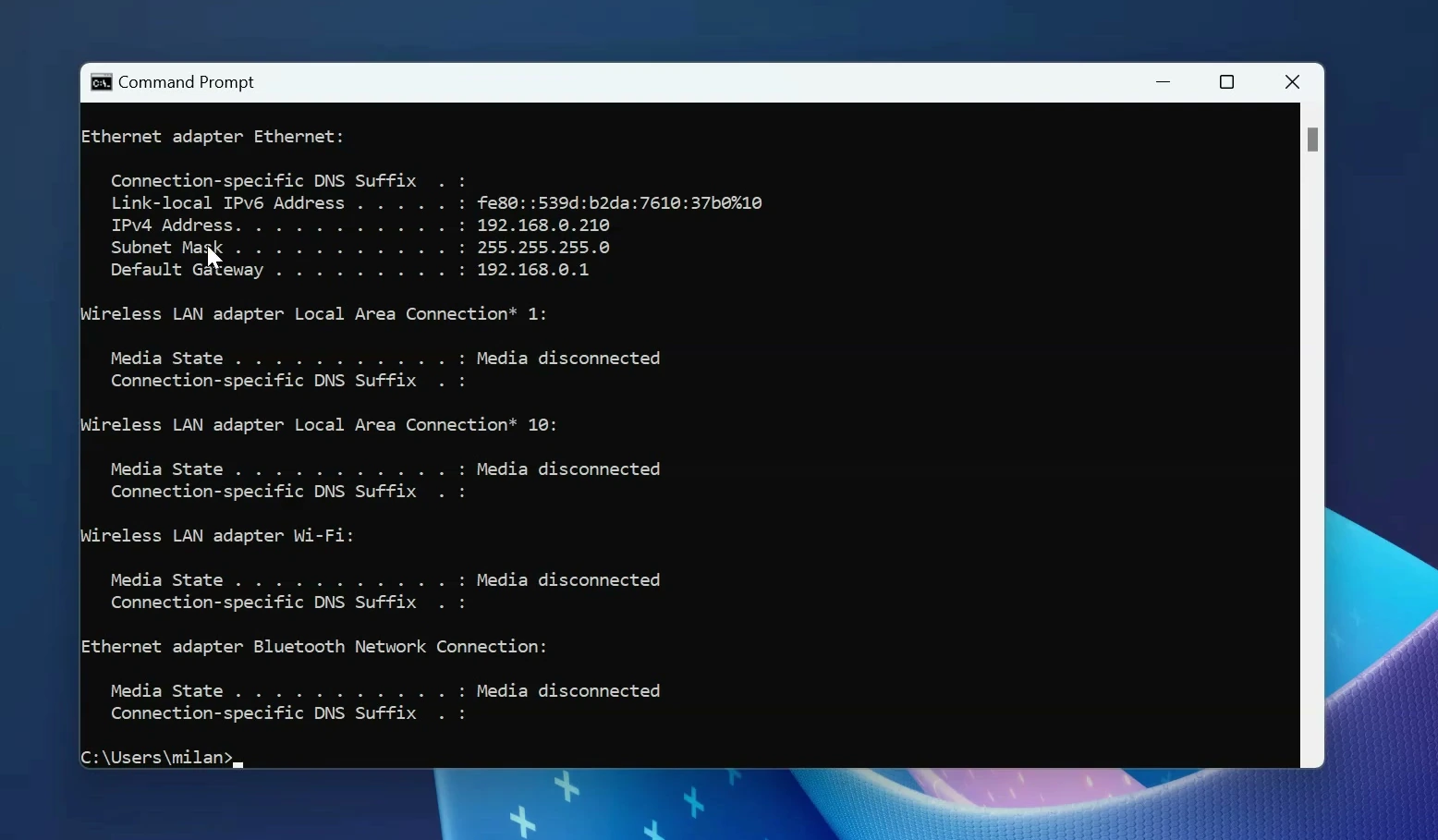
For example, the address might be 192.168.0.210. Your number will probably be different, so use the address shown on your own PC. It’s worth keeping it handy for the next step.
Install RaiDrive on the second computer
Windows already has ways to connect over SSH, but RaiDrive makes this method far more convenient. It can mount the SFTP folder as a drive in File Explorer. That means you can handle files with the familiar copy, paste, and drag-and-drop actions.
Download RaiDrive from its official website and install it on the second Windows computer.
Open RaiDrive after installation. If it asks you to sign in, follow the on-screen process. Then click Add to create a new connection.
Connect to the shared folder using SFTP
In the New Drive window, open the NAS tab and choose SFTP. You’ll see fields for the server address and account details.
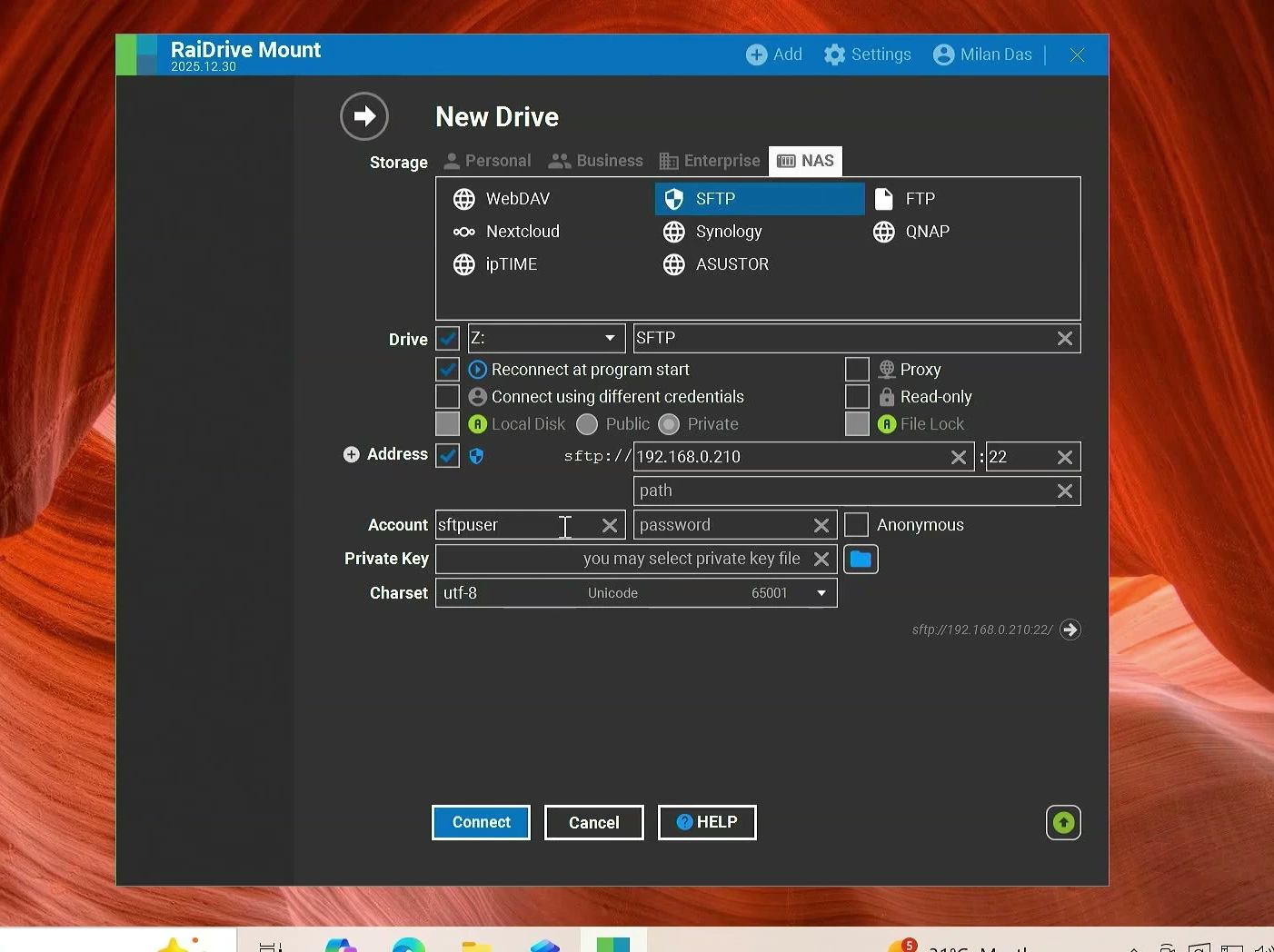
Fill them in using the information from your first PC:
- Address: Enter the first PC’s IPv4 address, such as
192.168.0.210. - Port: Keep
22, unless you deliberately changed the SSH server’s port. - Account: Enter the Windows username you prepared, such as
sftpuser. - Password: Use the password for that Windows account.
- Path: To open the example folder directly, enter
/C:/Shared. - Drive letter: Choose an available letter, such as Z:, and give the drive an easy-to-recognize name.
Notice the forward slashes in /C:/Shared. RaiDrive expects an SFTP-style remote path here, not the normal Windows path C:\Shared. If you made your folder on another drive or in another location, adjust the path to match.
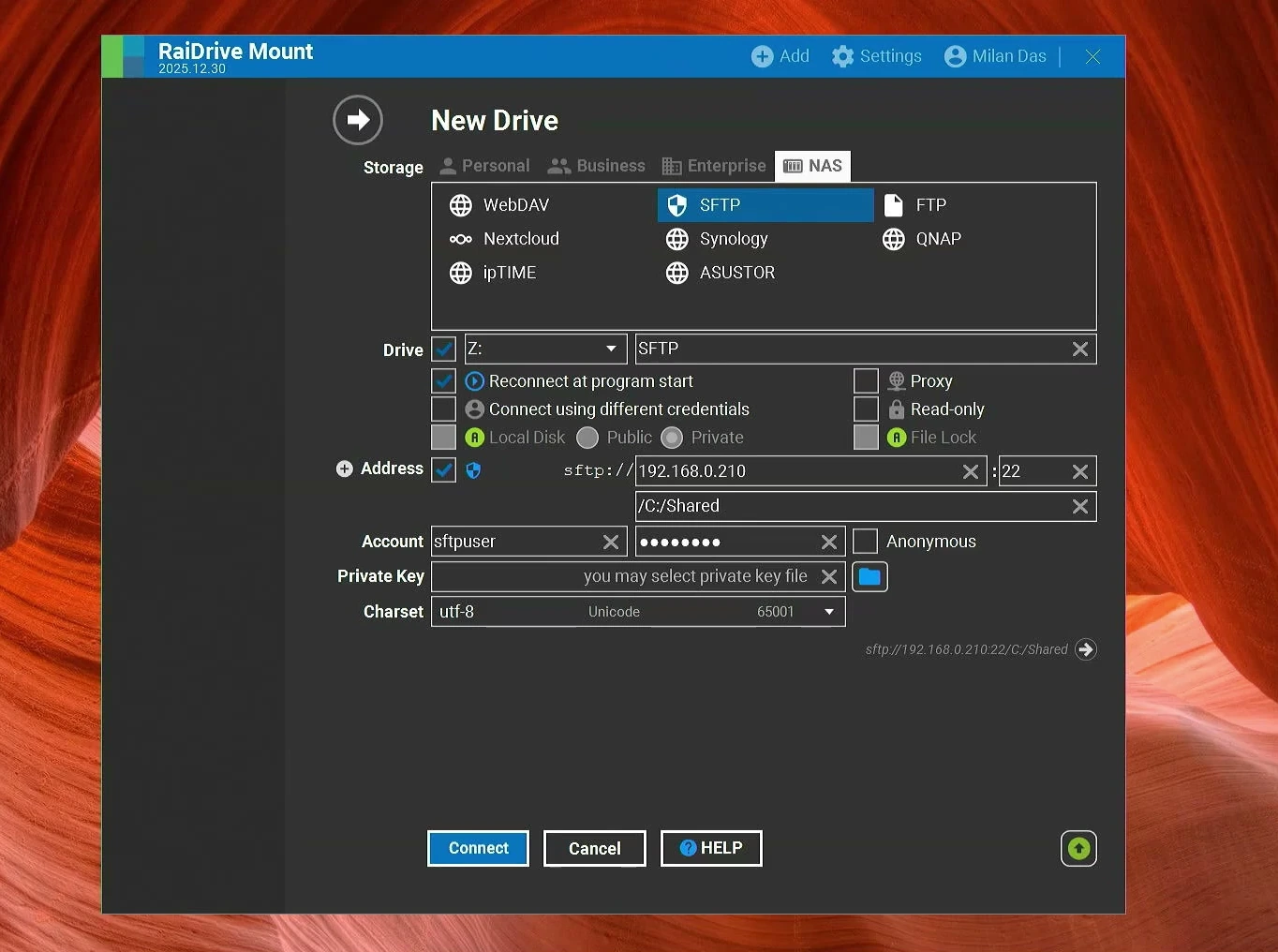
When everything looks correct, click Connect. On your first connection, you may be asked to trust the server’s SSH host key. Only accept it if you recognize the PC you’re connecting to and have verified its identity.
Transfer files directly from File Explorer
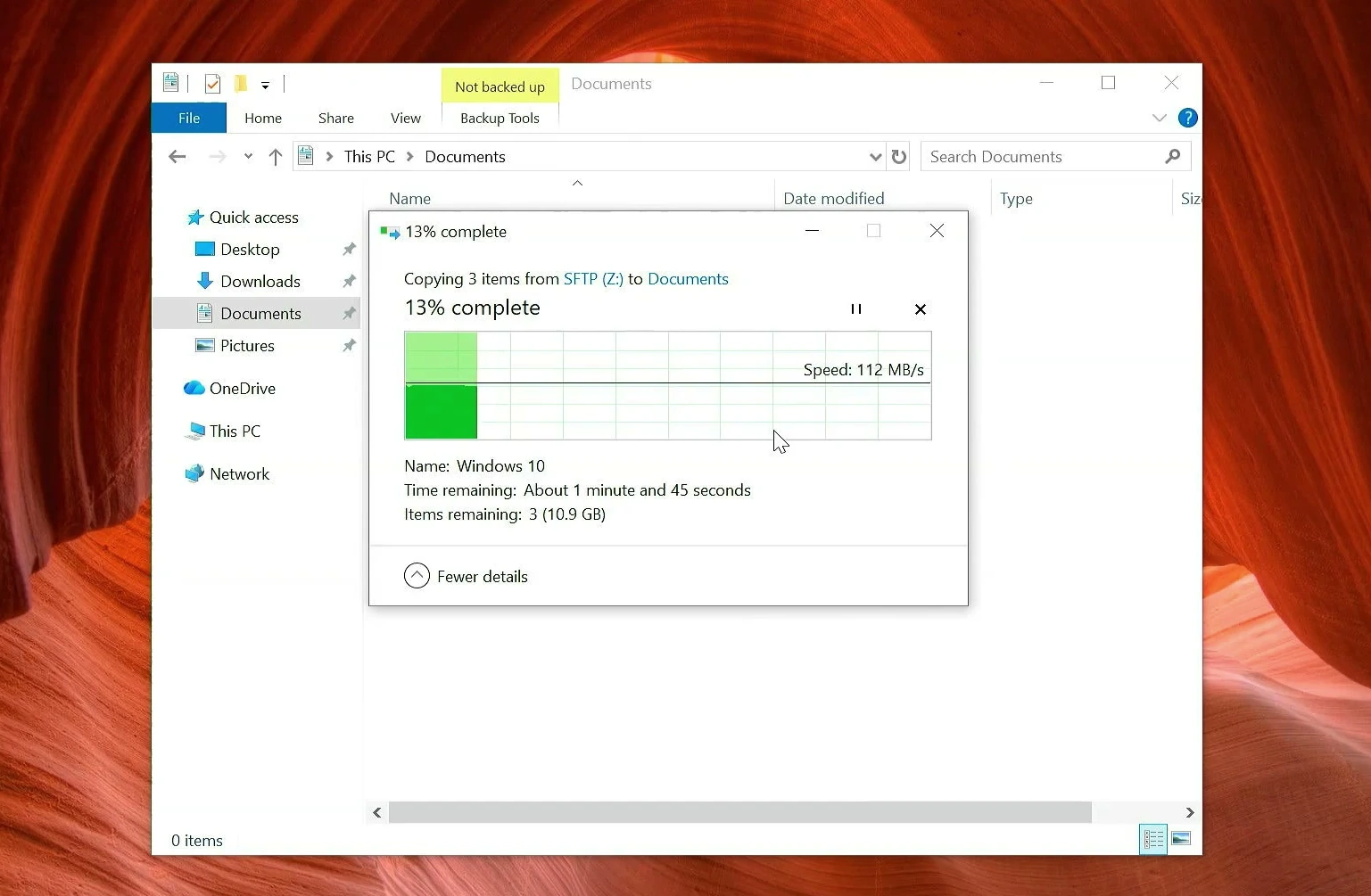
Once RaiDrive connects, open File Explorer → This PC. The SFTP connection should appear as a new drive with the letter you selected.
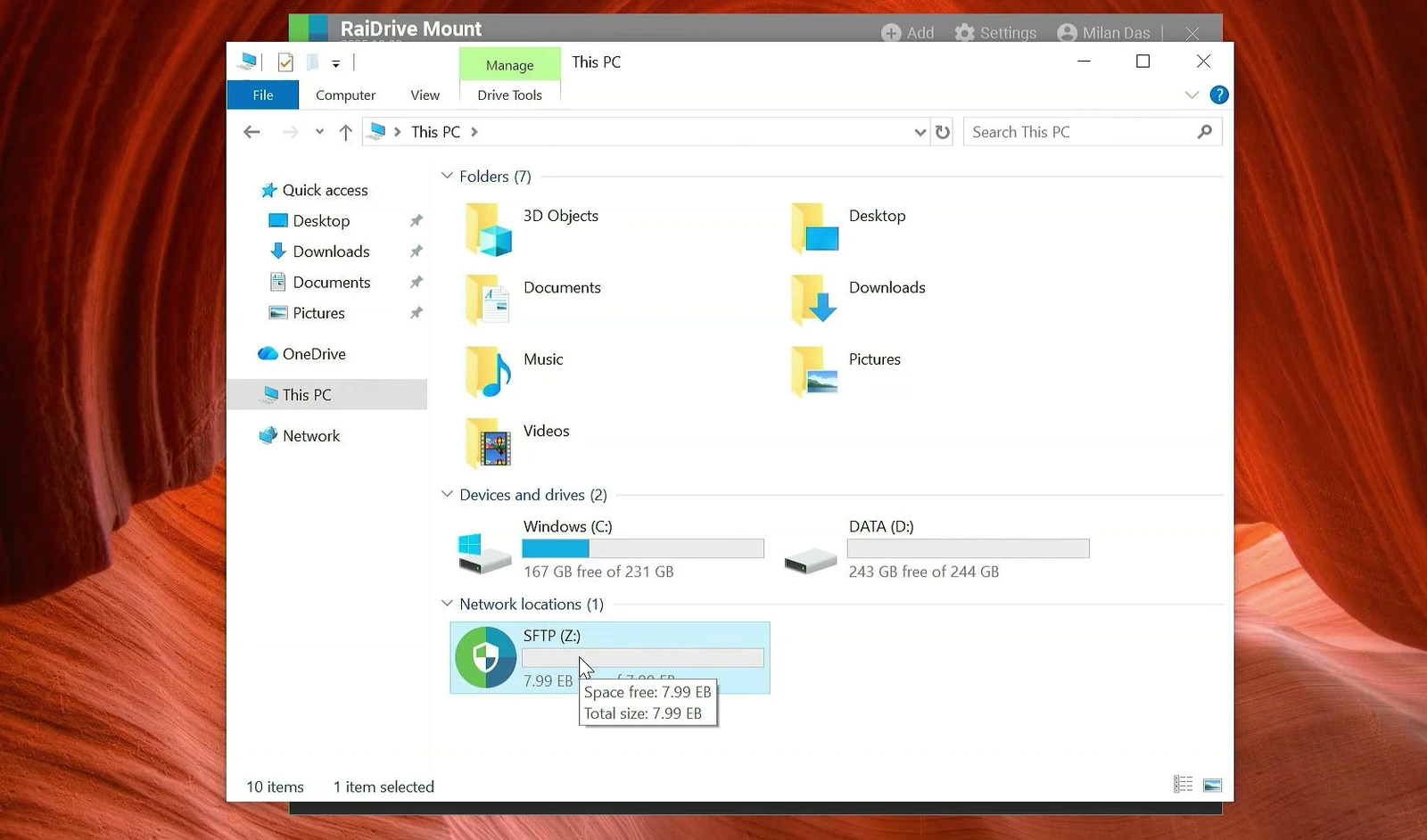
Open that drive and you should see the contents of your Shared folder on the first computer. Try copying a small file into it. The file should appear on the first PC, provided the account has write access.
You can transfer files in the other direction as well. Open the mapped drive, select the files you need, and copy them into a folder on your second computer. There’s no need to upload them to cloud storage or carry a USB drive between desks.
For regular transfers, you can use RaiDrive’s Reconnect at program start option. The first computer still needs to be turned on, connected to the network, and running its OpenSSH service.
Wi-Fi or Ethernet: which is better?
Both connections work, so there’s no need to buy cables just to move a few documents. Wi-Fi is convenient when the computers are in different rooms. Its speed can vary with signal strength, interference, and your router.
If you regularly move large video projects or backups, Ethernet usually offers a steadier connection. For the best results, connect both computers to a gigabit-capable router or switch with suitable cables. Actual transfer speed still depends on the network, the drives, and the computers themselves.
And that’s the useful part of this setup. After the first connection, the remote folder behaves much like another drive in File Explorer. Moving files between two Windows computers becomes an ordinary copy-and-paste job rather than a whole USB-drive routine.