Playing Android games on your phone is convenient, but touch controls and a small screen are not always ideal. Maybe you want to use a keyboard and mouse, enjoy your favorite mobile game on a bigger display, or simply play while sitting at your PC.
Google Play Games on PC makes that possible for supported Android games. It is Google’s official gaming application for Windows, so you don’t need to install a separate, general-purpose Android emulator like BlueStacks just to access its game catalog. You can keep using Windows normally and launch compatible mobile games in their own windows.
The nice part is how familiar everything feels. You can sign in with your Google account, browse games, and start playing from one app. Some titles can even sync progress with your mobile device. There are a few PC requirements to check first, but the setup itself is fairly straightforward.
Make sure your Windows PC is ready
Before downloading anything, it is worth checking whether your computer meets Google’s requirements. The app uses hardware virtualization to run its games, so an eligible processor and a reasonably capable PC make a difference.
According to Google’s published minimum requirements, you’ll need:
- Windows 10 (version 2004) or newer, including Windows 11.
- 8 GB RAM and at least 10 GB of free space on an SSD.
- Four physical CPU cores and graphics comparable to Intel UHD Graphics 630 or better.
- A Windows administrator account and hardware virtualization enabled.
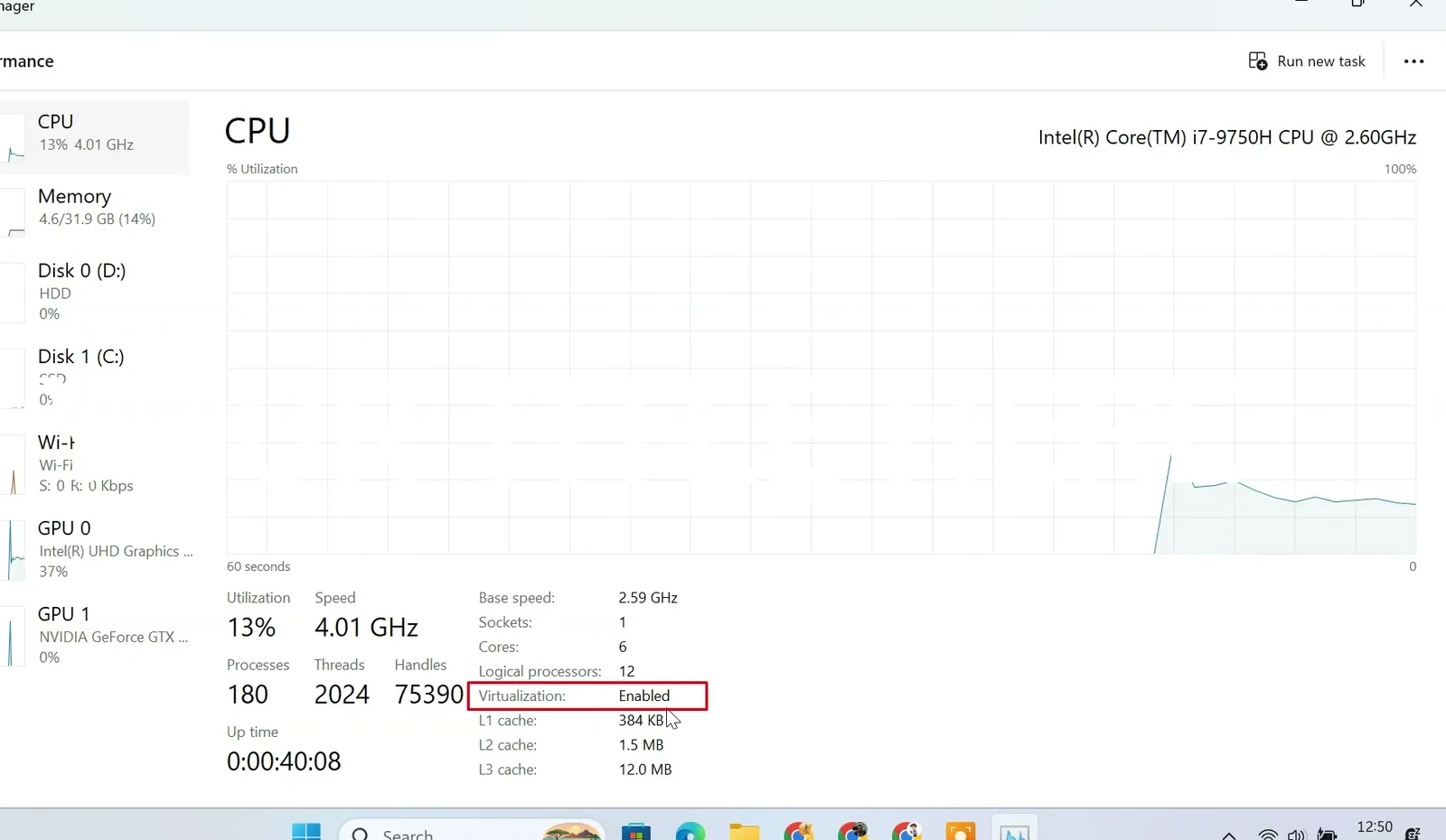
Not sure whether virtualization is enabled? You can check it in less than a minute. Right-click the Windows taskbar and open Task Manager. Select Performance, then choose CPU. Near the lower part of the window, look for Virtualization. It should say Enabled.
If it says Disabled, restart your PC and enter its BIOS or UEFI settings. Look for Intel Virtualization Technology on an Intel system or SVM Mode on many AMD systems. Enable the relevant option, save your changes, and restart. The exact menu will depend on your motherboard or laptop model.
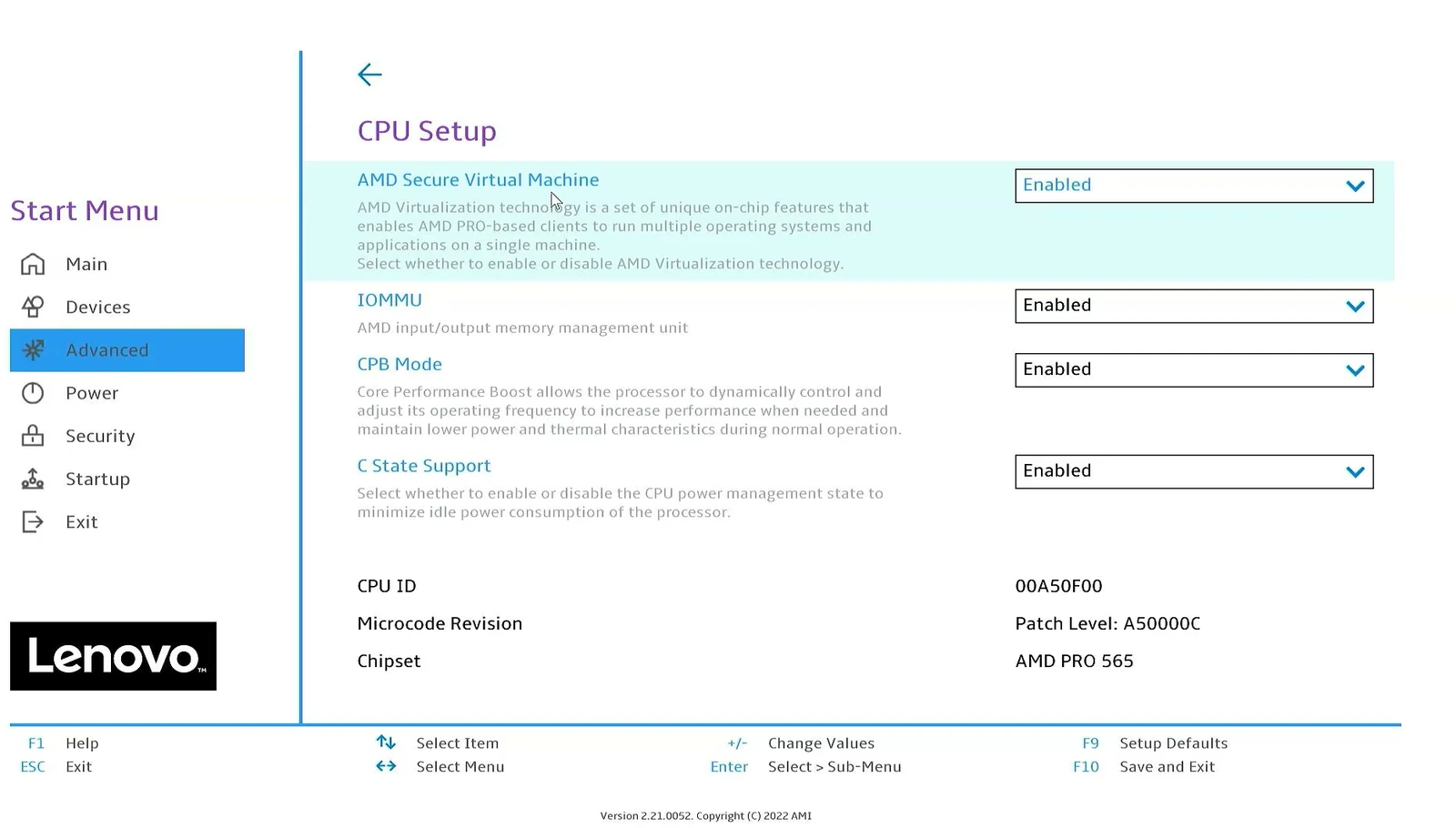
Only change the virtualization setting you need. If you cannot find it, check your computer manufacturer’s instructions instead of changing unrelated BIOS options.
Download Google Play Games for PC
With the hardware check out of the way, head to the official Google Play Games website. This is the safest place to get the Windows installer, and it also provides the latest information about PC support.
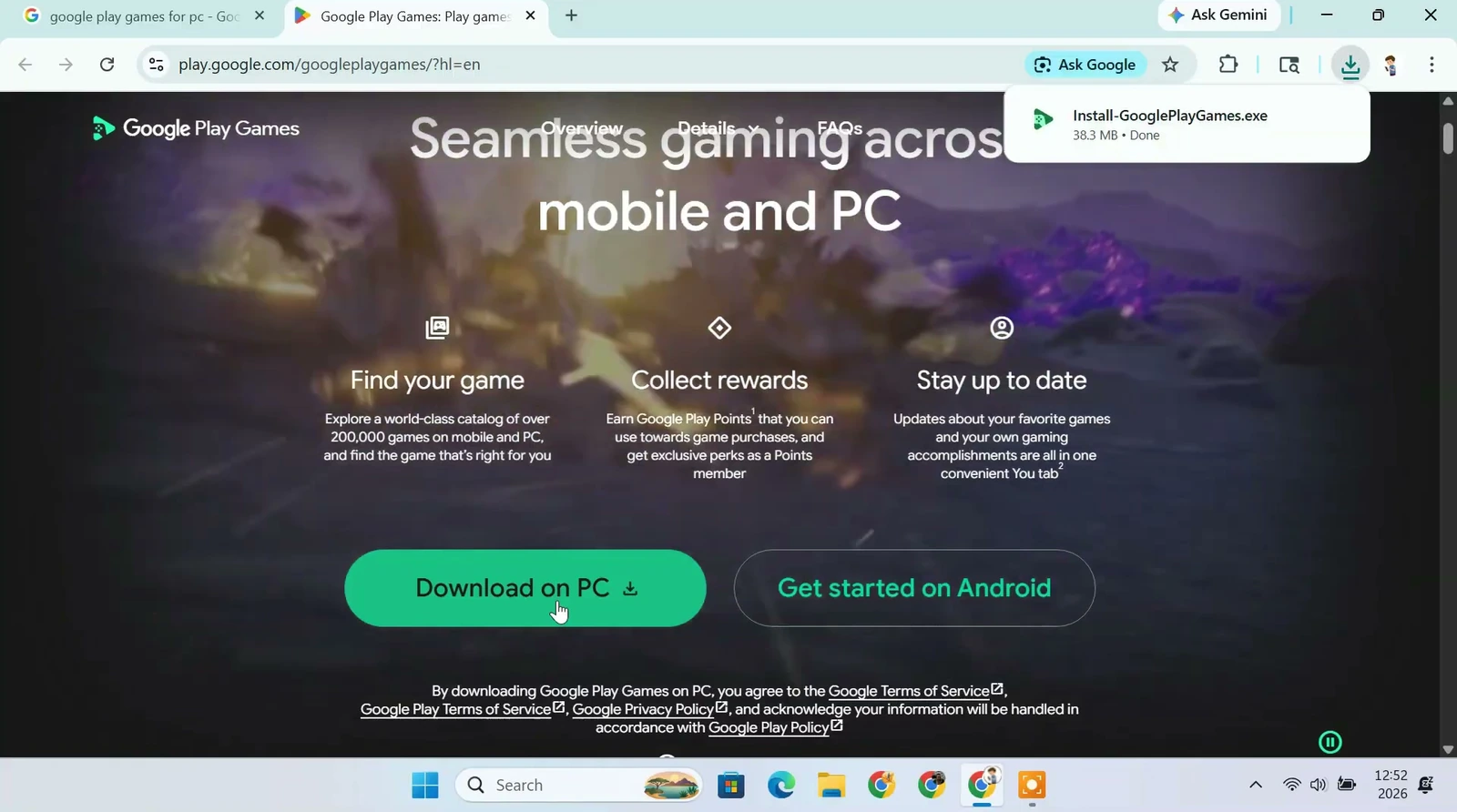
On the website, choose Download on PC. Once the installer has downloaded, open the file from your Downloads folder.
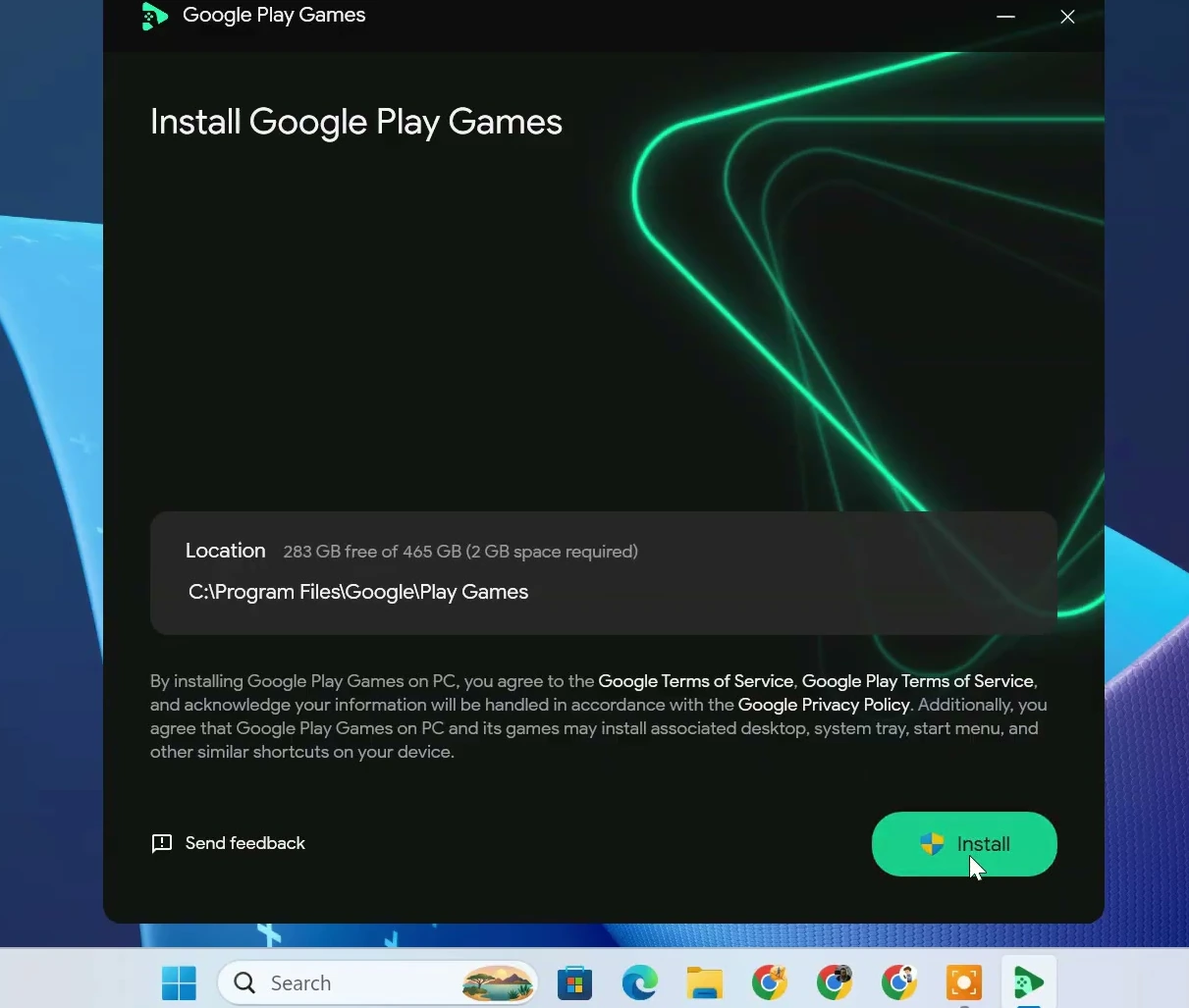
The installer shows where the program will be installed. Select Install to begin. Google Play Games will download and configure the components it needs, so keep your internet connection active until setup finishes.
Depending on your Windows configuration, setup might ask you to enable Windows Hypervisor Platform or restart the computer. Follow the on-screen instructions if that happens. It is normal for virtualization-related features to require a restart.
Sign in and find a game you want to play
Open Google Play Games after installation. Sign in with your Google account and complete any profile confirmation that appears. You don’t need a separate Android phone to create a Play Games profile.
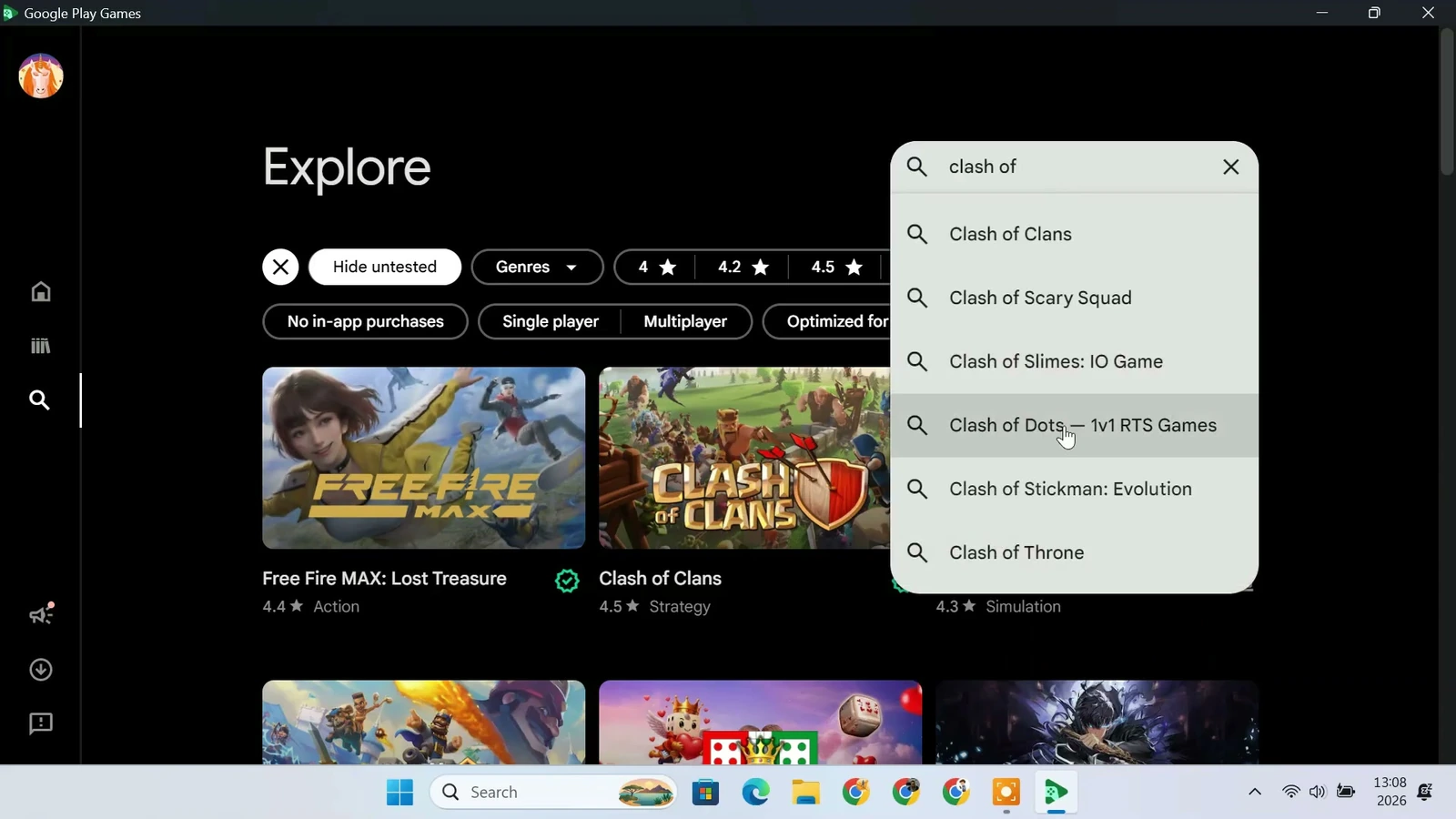
You’ll arrive at a desktop-style game library. The Home area highlights games you might like, while the Library contains your installed titles. You can also explore available games by genre or search for a name directly.
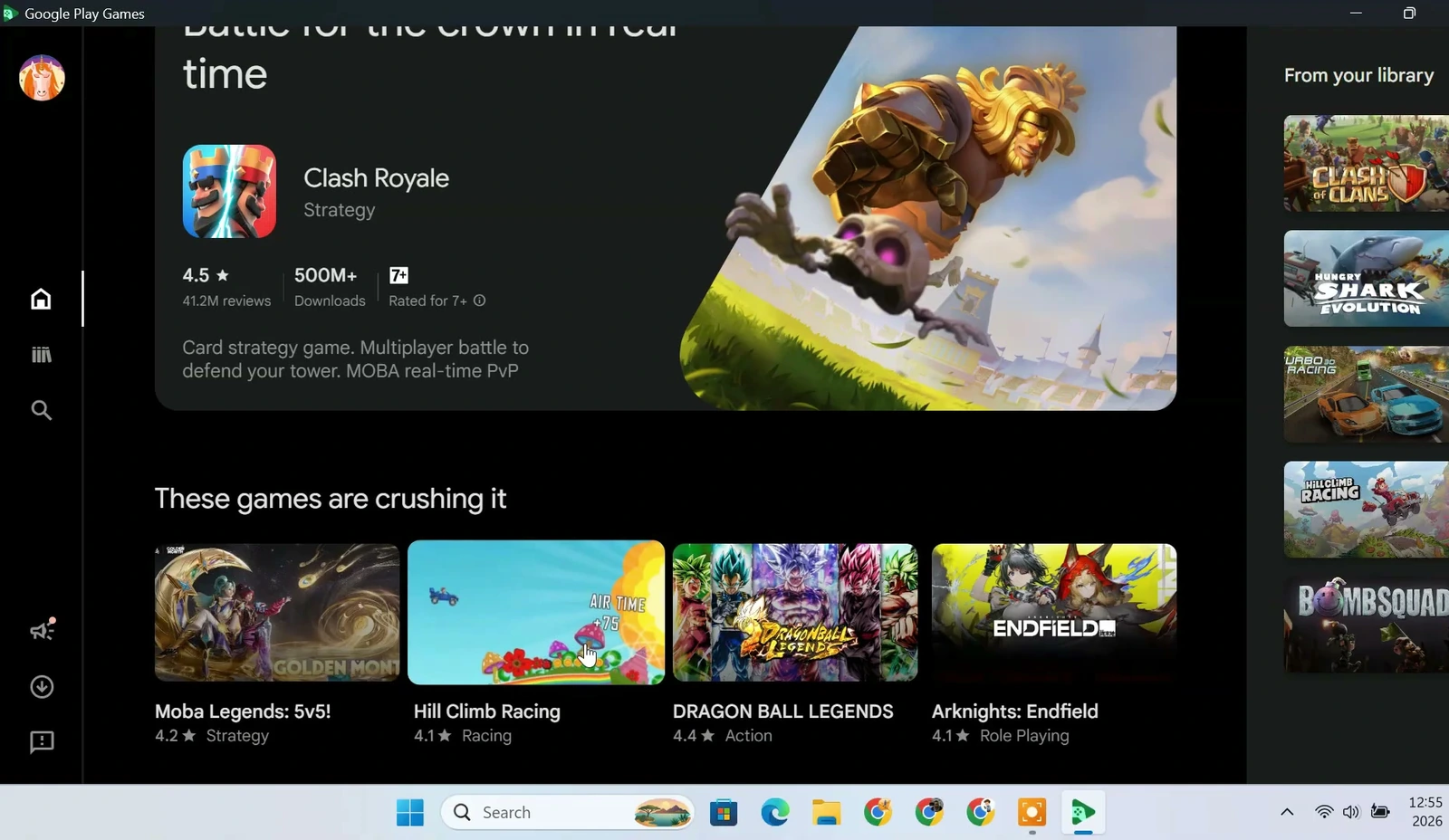
For example, try the Search or Explore option and type the name of a game you want. Open its listing to see whether it is available for your PC. In the screenshots here, the catalog includes titles such as Free Fire MAX: Lost Treasure and other mobile games.
Install your first Android game
Found something you want to try? Open the game’s page and select Install. Wait for the download to finish, then choose Play. There’s no need to move APK files around or manually configure a virtual Android phone.
In this example, Free Fire MAX: Lost Treasure is installed through the Google Play Games library. Once it is ready, the game’s page shows a Play button.
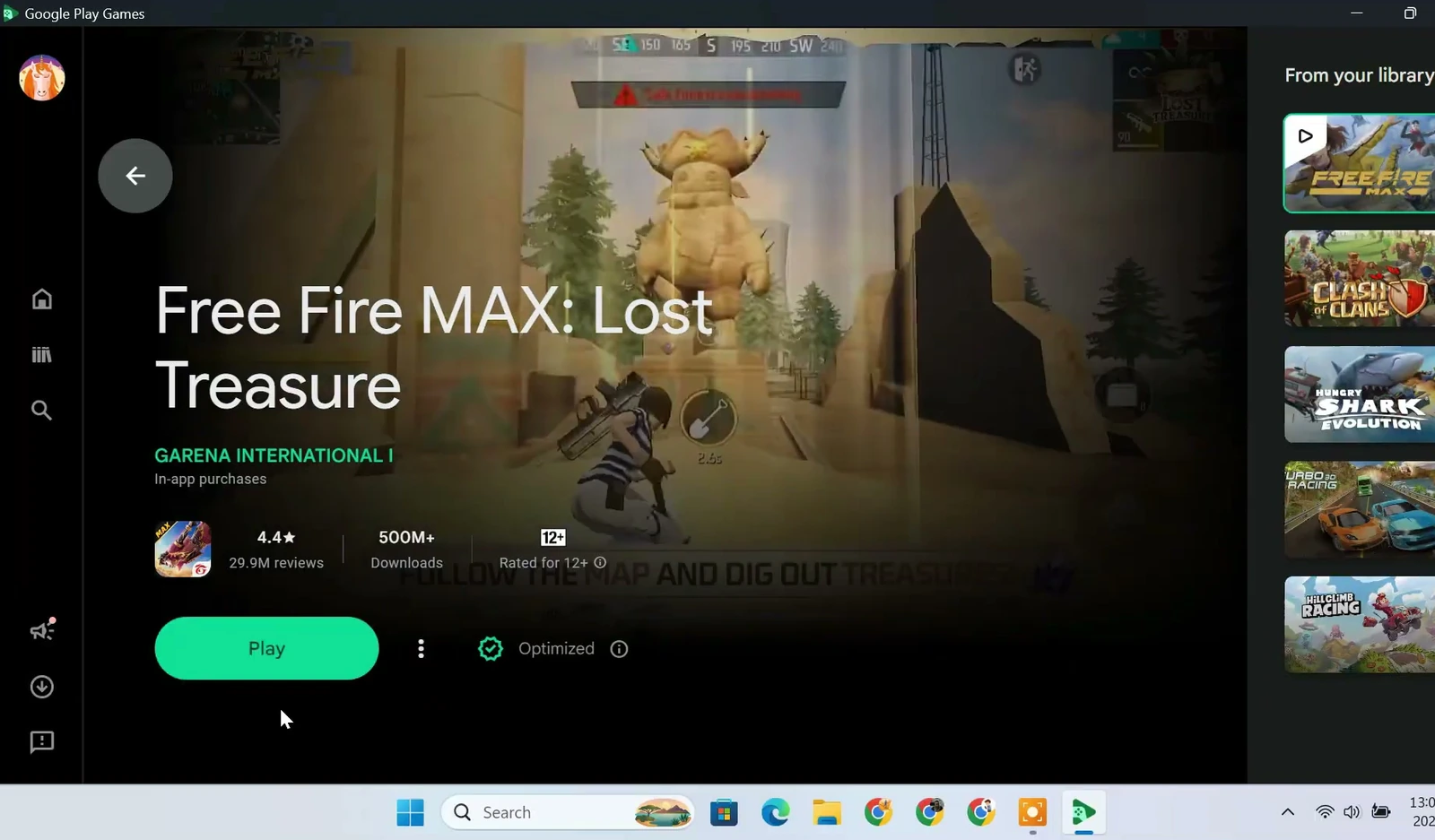
You may also be offered a desktop shortcut. That’s optional, but it is handy if you play the same game regularly. It lets you open the title without browsing the library each time.
After launch, the game runs in a window or full-screen view on your Windows desktop. You’ll still be able to return to your other PC applications whenever you need to.
Adjust graphics and keyboard controls
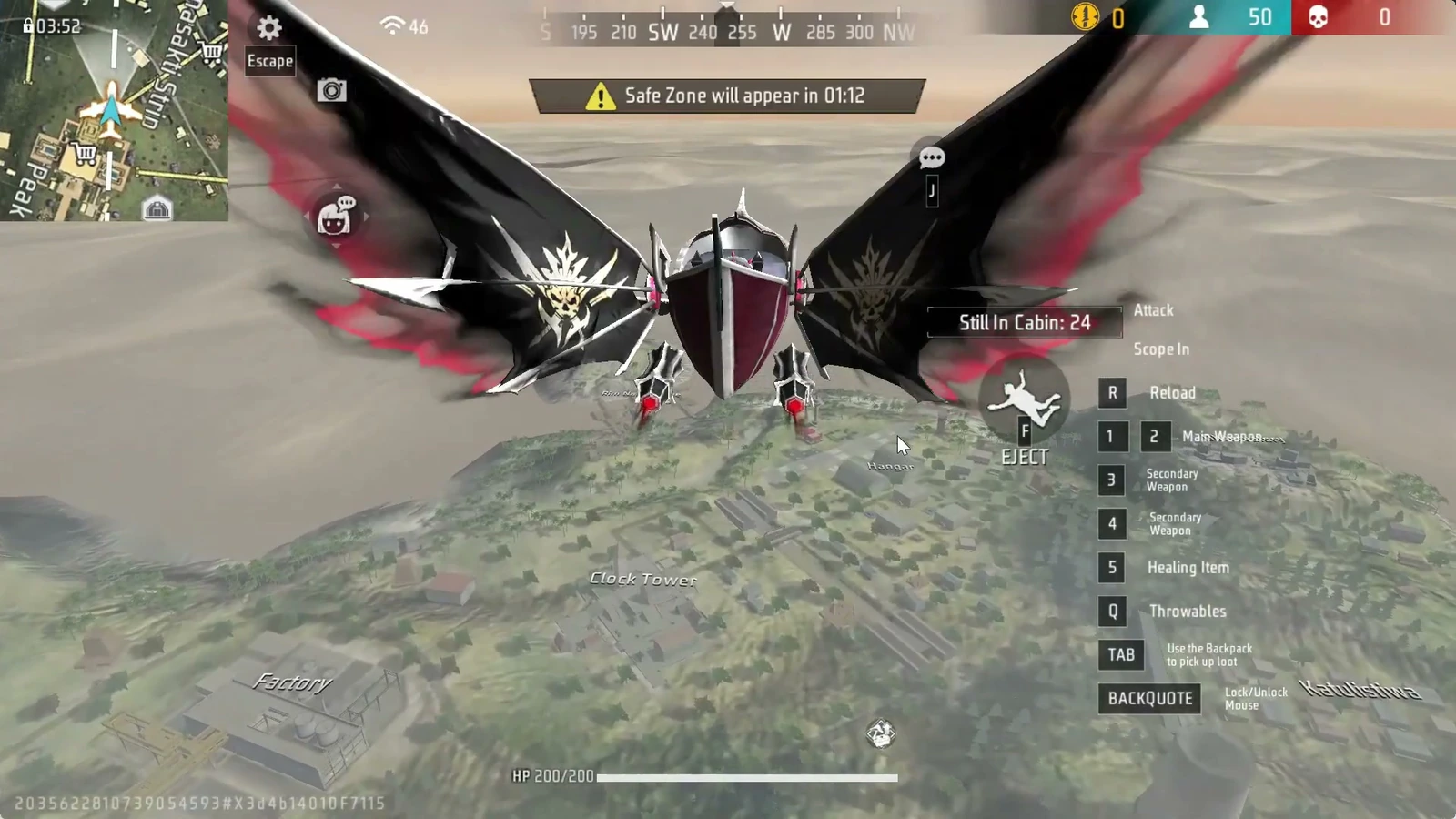
Playing on a larger display is only half the appeal. Google Play Games also provides PC-friendly controls for supported titles. Many games already recognize the keyboard and mouse. Others allow you to customize how on-screen controls map to your keys.
While a game is running, press Shift + Tab to open the game options. Depending on the game and current app version, you can access settings for controls, screen resolution, and frame rate.
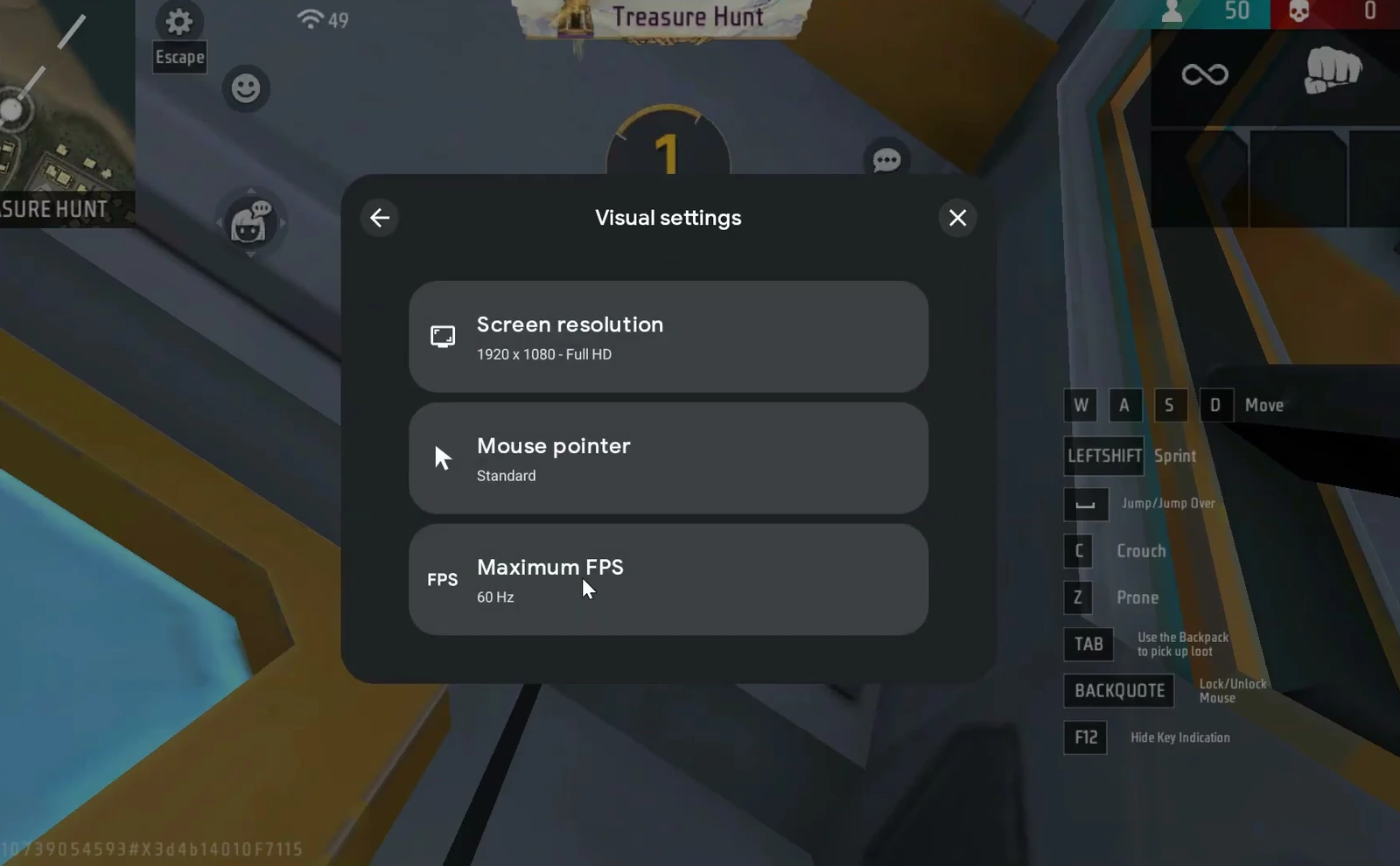
Under Visual settings, you may see a Maximum FPS option. A higher frame-rate limit can make movement feel smoother when your hardware and the game can keep up. If performance is uneven, try a lower setting rather than assuming the highest option will work best.
You can also choose a lower Screen resolution when the game is demanding. For example, moving from 1920 × 1080 to 1280 × 720 reduces the number of pixels your computer needs to render. That can help on some PCs, although the image will look less sharp. Some changes may require the game to restart.
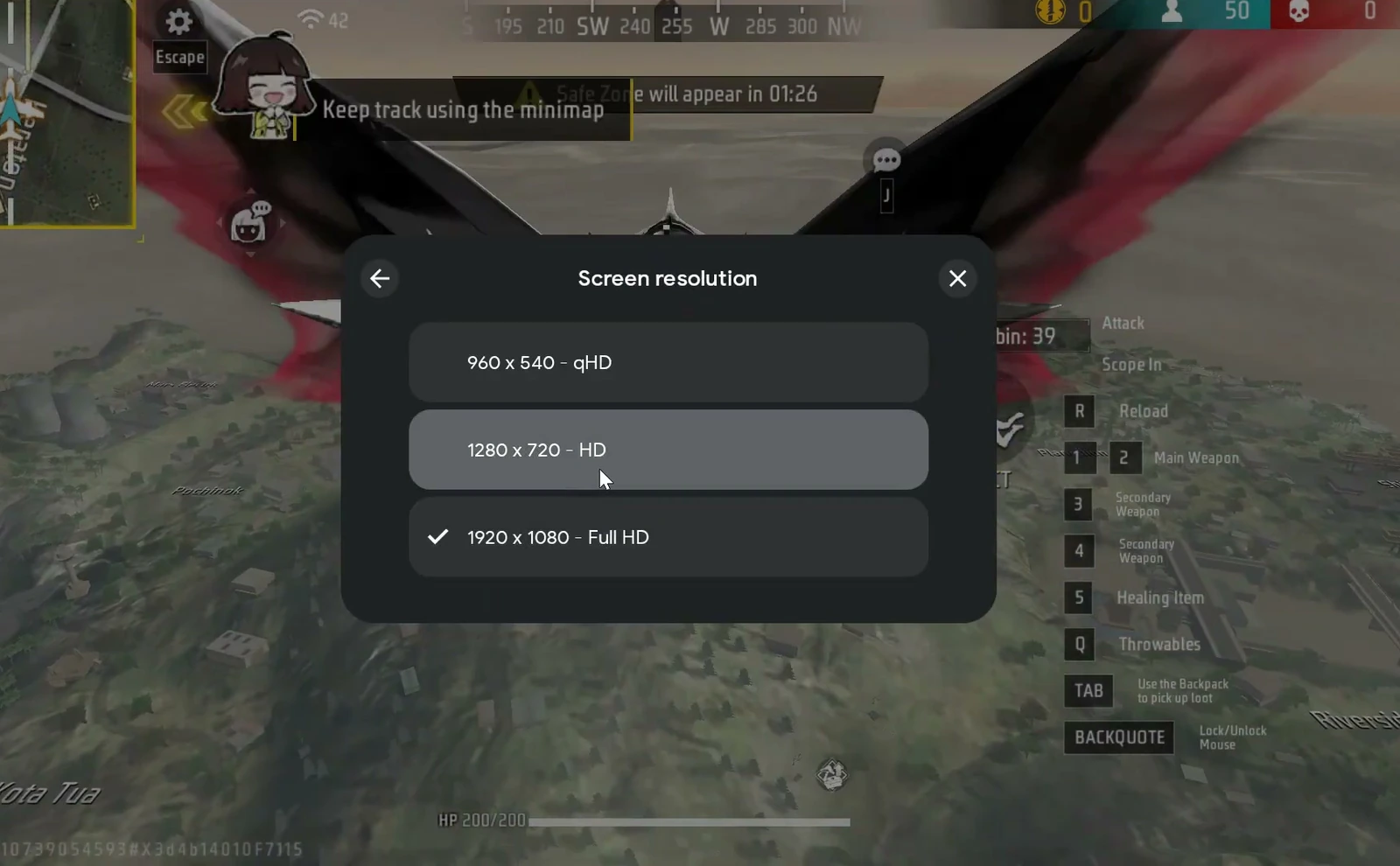
Need to adjust the keys? Look for Game controls or Remap controls in the in-game menu. The exact options depend on whether that title already has optimized PC controls. You do not need to remap anything if the default controls already feel comfortable.
What to expect once you’re playing
The biggest advantage of Google Play Games on PC is convenience. You can install supported mobile titles from a familiar library and play them with your Windows setup. For games that support cross-device progress, signing in with the same Google account may also help you pick up where you left off on mobile.
The example gameplay shows Free Fire MAX running with on-screen keyboard guidance. It is a useful way to see what the PC experience looks like, though your frame rate and controls may differ with other games and hardware.
It’s worth keeping expectations realistic. Google’s app is not guaranteed to be faster than every traditional Android emulator, and not every game is available. But if the title you want is supported, this is a straightforward way to enjoy Android gaming on your PC without configuring a full Android environment yourself.